> ## Documentation Index
> Fetch the complete documentation index at: https://lightdash-mintlify-87860eff.mintlify.site/llms.txt
> Use this file to discover all available pages before exploring further.
# Add headless browser on self-hosting
> We use a chrome headless browser to generate images from your charts and dashboards so we can send them via email or Slack.
🛠 This page is for engineering teams self-hosting their own Lightdash instance. If you want to set up scheduled deliveries, go to the [Scheduled deliveries](/guides/how-to-create-scheduled-deliveries) guide.
Images can be requested on `Slack unfurl` or using our `Scheduler`
If you are running Lightdash on self-hosting, you will also have to run this headless browser on your infrastructure.
## How it works
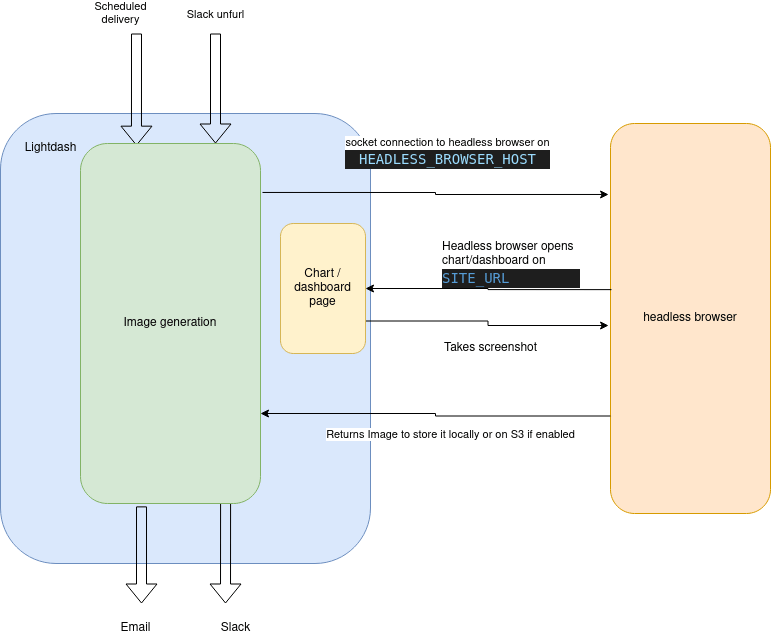 When Lightdash needs to generate an image, it will open a new socket connection to the headless browser on `ws://HEADLESS_BROWSER_HOST:HEADLESS_BROWSER_PORT`
Then using `playwright` we will browse the chart/dashboard on lightdash on `SITE_URL`
We load the chart/dashboard on the browser and then a screenshot when it finishes loading
Then we store that image in S3 (if enabled) or locally and then return the image URL.
If the image was requested by Slack unfurl, we will unfurl the image using the Slack API. If the image was requested by Scheduler, we will send the image to the destination(s) (email or Slack)
## Configure headless browser on lightdash
Lightdash uses Browserless for headless browser functionality. We recommend using the `ghcr.io/browserless/chromium` image with version `v2.24.3`, which is the version used in Lightdash Cloud deployments.
In order to make this work, there are a few key ENV variables that need to be configured correctly.
* `HEADLESS_BROWSER_HOST` : If you're running docker, this could be `headless-browser`, or `localhost` if you're running it locally (or with network:host)
* `HEADLESS_BROWSER_PORT` : Optional port for headless browser, defaults to 3001
* `SITE_URL` : The URL for your Lightdash instance.
This SITE\_URL variable (eg: [https://eu1.lightdash.cloud](https://eu1.lightdash.cloud)) needs to be accessible from this headless browser service, either by a local connection, or via Internet. Otherwise it will not be able to open a page and generate the image.
This means that if you are using docker locally, make sure the headless browser pod can reach the lightdash pod. Or follow the [docker documentation](https://docs.docker.com/compose/compose-file/compose-file-v3/#network_mode) to enable `network:host`
## Timeouts and retries
If you're exporting large dashboards via scheduled deliveries or Slack, you may need
to tune timeout and retry settings. There are two layers of configuration: the
Browserless container and the Lightdash backend.
### Browserless container
Set these environment variables on the **headless browser pod/container** (the
`ghcr.io/browserless/chromium` image):
| Variable | Default | Description |
| --------- | ------- | --------------------------------------------------------------------------------------------------------------------------------------------------------------------------------------------------------- |
| `TIMEOUT` | `30000` | Maximum time (ms) Browserless allows a browser session to run before terminating it. Increase this if large dashboards time out during export. A value of `120000` (2 minutes) works well for most cases. |
### Lightdash backend
Set these environment variables on the **Lightdash backend** (the main app or
scheduler worker):
| Variable | Default | Description |
| ----------------------------------------- | ----------------- | ------------------------------------------------------------------------------------------------------------------------------------------------------------------------- |
| `HEADLESS_BROWSER_MAX_SCREENSHOT_RETRIES` | `5` | Number of times Lightdash retries a failed screenshot before giving up. |
| `HEADLESS_BROWSER_RETRY_BASE_DELAY_MS` | `3000` | Base delay (ms) between screenshot retries. Uses exponential backoff. |
| `SCHEDULER_JOB_TIMEOUT` | `600000` (10 min) | Maximum time (ms) for any scheduler job (including screenshot exports) to complete. |
| `SCHEDULER_SCREENSHOT_TIMEOUT` | — | Maximum time (ms) for taking a screenshot of a chart or dashboard. Increase this if individual screenshot captures are timing out, separate from the overall job timeout. |
### Troubleshooting large dashboard exports
If scheduled deliveries fail for large dashboards, try the following in order:
1. **Increase `TIMEOUT` on the Browserless container** to at least `120000` (2 minutes).
This is the most common fix.
2. **Check that `SITE_URL` is reachable** from the headless browser container. The
browser needs to load the full dashboard page, including all chart queries.
3. If exports still fail intermittently, increase `HEADLESS_BROWSER_MAX_SCREENSHOT_RETRIES`
to give it more attempts.
4. If jobs are timing out entirely, increase `SCHEDULER_JOB_TIMEOUT`. The default
of 10 minutes should be sufficient for most dashboards.
## Run Lightdash on a fully internal HTTPS network
If you run Lightdash with `SECURE_COOKIES=true` and you don't want the headless browser to leave the cluster to reach Lightdash, `INTERNAL_LIGHTDASH_HOST` still needs to be **HTTPS**. Plain HTTP does not work in this configuration: Lightdash emits HSTS on every response, so once Chrome (running inside browserless) has loaded a page from the internal hostname over HTTP it pins that hostname to HTTPS and auto-upgrades every subsequent asset request — which then fails against a plain-HTTP ClusterIP.
The typical setup is to terminate TLS on the internal Lightdash hostname (with an internal Ingress, an nginx/envoy sidecar, an internal AWS ALB, etc.) using a **self-signed certificate**, and tell the Lightdash backend to skip TLS validation for screenshot traffic to that host:
```yaml theme={null}
# values.yaml
configMap:
SECURE_COOKIES: 'true'
SITE_URL: https://lightdash.mycompany.com
INTERNAL_LIGHTDASH_HOST: https://lightdash-internal.svc.cluster.local
INTERNAL_LIGHTDASH_HOST_IGNORE_HTTPS_ERRORS: 'true'
```
`INTERNAL_LIGHTDASH_HOST_IGNORE_HTTPS_ERRORS=true` is opt-in and default off. When enabled, the Lightdash backend skips TLS validation on:
* the internal `getUserCookie` request from the backend to `INTERNAL_LIGHTDASH_HOST`, and
* the Playwright/Chromium request that renders the screenshot inside the headless browser.
**Security trade-off.** TLS validation is disabled for that traffic. Only enable this flag when the network path between the Lightdash backend, the headless browser and `INTERNAL_LIGHTDASH_HOST` is itself trusted — typically inside a Kubernetes cluster network or a private VPC.
The default `ghcr.io/browserless/chromium` image does **not** trust self-signed certificates out of the box. You will see `net::ERR_CERT_AUTHORITY_INVALID` from Playwright and `DEPTH_ZERO_SELF_SIGNED_CERT` from the backend's own internal fetch unless this flag is set.
If you can issue a publicly-trusted certificate for the internal hostname (e.g. via Let's Encrypt with DNS-01, AWS ACM, an internal subdomain of a public domain), the default browserless image already trusts it and you don't need this flag. This is only worth the effort if a publicly-trusted cert on the internal hostname is straightforward in your infrastructure — many teams find it isn't, which is why this flag exists.
When Lightdash needs to generate an image, it will open a new socket connection to the headless browser on `ws://HEADLESS_BROWSER_HOST:HEADLESS_BROWSER_PORT`
Then using `playwright` we will browse the chart/dashboard on lightdash on `SITE_URL`
We load the chart/dashboard on the browser and then a screenshot when it finishes loading
Then we store that image in S3 (if enabled) or locally and then return the image URL.
If the image was requested by Slack unfurl, we will unfurl the image using the Slack API. If the image was requested by Scheduler, we will send the image to the destination(s) (email or Slack)
## Configure headless browser on lightdash
Lightdash uses Browserless for headless browser functionality. We recommend using the `ghcr.io/browserless/chromium` image with version `v2.24.3`, which is the version used in Lightdash Cloud deployments.
In order to make this work, there are a few key ENV variables that need to be configured correctly.
* `HEADLESS_BROWSER_HOST` : If you're running docker, this could be `headless-browser`, or `localhost` if you're running it locally (or with network:host)
* `HEADLESS_BROWSER_PORT` : Optional port for headless browser, defaults to 3001
* `SITE_URL` : The URL for your Lightdash instance.
This SITE\_URL variable (eg: [https://eu1.lightdash.cloud](https://eu1.lightdash.cloud)) needs to be accessible from this headless browser service, either by a local connection, or via Internet. Otherwise it will not be able to open a page and generate the image.
This means that if you are using docker locally, make sure the headless browser pod can reach the lightdash pod. Or follow the [docker documentation](https://docs.docker.com/compose/compose-file/compose-file-v3/#network_mode) to enable `network:host`
## Timeouts and retries
If you're exporting large dashboards via scheduled deliveries or Slack, you may need
to tune timeout and retry settings. There are two layers of configuration: the
Browserless container and the Lightdash backend.
### Browserless container
Set these environment variables on the **headless browser pod/container** (the
`ghcr.io/browserless/chromium` image):
| Variable | Default | Description |
| --------- | ------- | --------------------------------------------------------------------------------------------------------------------------------------------------------------------------------------------------------- |
| `TIMEOUT` | `30000` | Maximum time (ms) Browserless allows a browser session to run before terminating it. Increase this if large dashboards time out during export. A value of `120000` (2 minutes) works well for most cases. |
### Lightdash backend
Set these environment variables on the **Lightdash backend** (the main app or
scheduler worker):
| Variable | Default | Description |
| ----------------------------------------- | ----------------- | ------------------------------------------------------------------------------------------------------------------------------------------------------------------------- |
| `HEADLESS_BROWSER_MAX_SCREENSHOT_RETRIES` | `5` | Number of times Lightdash retries a failed screenshot before giving up. |
| `HEADLESS_BROWSER_RETRY_BASE_DELAY_MS` | `3000` | Base delay (ms) between screenshot retries. Uses exponential backoff. |
| `SCHEDULER_JOB_TIMEOUT` | `600000` (10 min) | Maximum time (ms) for any scheduler job (including screenshot exports) to complete. |
| `SCHEDULER_SCREENSHOT_TIMEOUT` | — | Maximum time (ms) for taking a screenshot of a chart or dashboard. Increase this if individual screenshot captures are timing out, separate from the overall job timeout. |
### Troubleshooting large dashboard exports
If scheduled deliveries fail for large dashboards, try the following in order:
1. **Increase `TIMEOUT` on the Browserless container** to at least `120000` (2 minutes).
This is the most common fix.
2. **Check that `SITE_URL` is reachable** from the headless browser container. The
browser needs to load the full dashboard page, including all chart queries.
3. If exports still fail intermittently, increase `HEADLESS_BROWSER_MAX_SCREENSHOT_RETRIES`
to give it more attempts.
4. If jobs are timing out entirely, increase `SCHEDULER_JOB_TIMEOUT`. The default
of 10 minutes should be sufficient for most dashboards.
## Run Lightdash on a fully internal HTTPS network
If you run Lightdash with `SECURE_COOKIES=true` and you don't want the headless browser to leave the cluster to reach Lightdash, `INTERNAL_LIGHTDASH_HOST` still needs to be **HTTPS**. Plain HTTP does not work in this configuration: Lightdash emits HSTS on every response, so once Chrome (running inside browserless) has loaded a page from the internal hostname over HTTP it pins that hostname to HTTPS and auto-upgrades every subsequent asset request — which then fails against a plain-HTTP ClusterIP.
The typical setup is to terminate TLS on the internal Lightdash hostname (with an internal Ingress, an nginx/envoy sidecar, an internal AWS ALB, etc.) using a **self-signed certificate**, and tell the Lightdash backend to skip TLS validation for screenshot traffic to that host:
```yaml theme={null}
# values.yaml
configMap:
SECURE_COOKIES: 'true'
SITE_URL: https://lightdash.mycompany.com
INTERNAL_LIGHTDASH_HOST: https://lightdash-internal.svc.cluster.local
INTERNAL_LIGHTDASH_HOST_IGNORE_HTTPS_ERRORS: 'true'
```
`INTERNAL_LIGHTDASH_HOST_IGNORE_HTTPS_ERRORS=true` is opt-in and default off. When enabled, the Lightdash backend skips TLS validation on:
* the internal `getUserCookie` request from the backend to `INTERNAL_LIGHTDASH_HOST`, and
* the Playwright/Chromium request that renders the screenshot inside the headless browser.
**Security trade-off.** TLS validation is disabled for that traffic. Only enable this flag when the network path between the Lightdash backend, the headless browser and `INTERNAL_LIGHTDASH_HOST` is itself trusted — typically inside a Kubernetes cluster network or a private VPC.
The default `ghcr.io/browserless/chromium` image does **not** trust self-signed certificates out of the box. You will see `net::ERR_CERT_AUTHORITY_INVALID` from Playwright and `DEPTH_ZERO_SELF_SIGNED_CERT` from the backend's own internal fetch unless this flag is set.
If you can issue a publicly-trusted certificate for the internal hostname (e.g. via Let's Encrypt with DNS-01, AWS ACM, an internal subdomain of a public domain), the default browserless image already trusts it and you don't need this flag. This is only worth the effort if a publicly-trusted cert on the internal hostname is straightforward in your infrastructure — many teams find it isn't, which is why this flag exists.