> ## Documentation Index
> Fetch the complete documentation index at: https://lightdash-mintlify-87860eff.mintlify.site/llms.txt
> Use this file to discover all available pages before exploring further.
# Table
> Use tables for looking at tabular data or lists of things like user IDs or transactions.
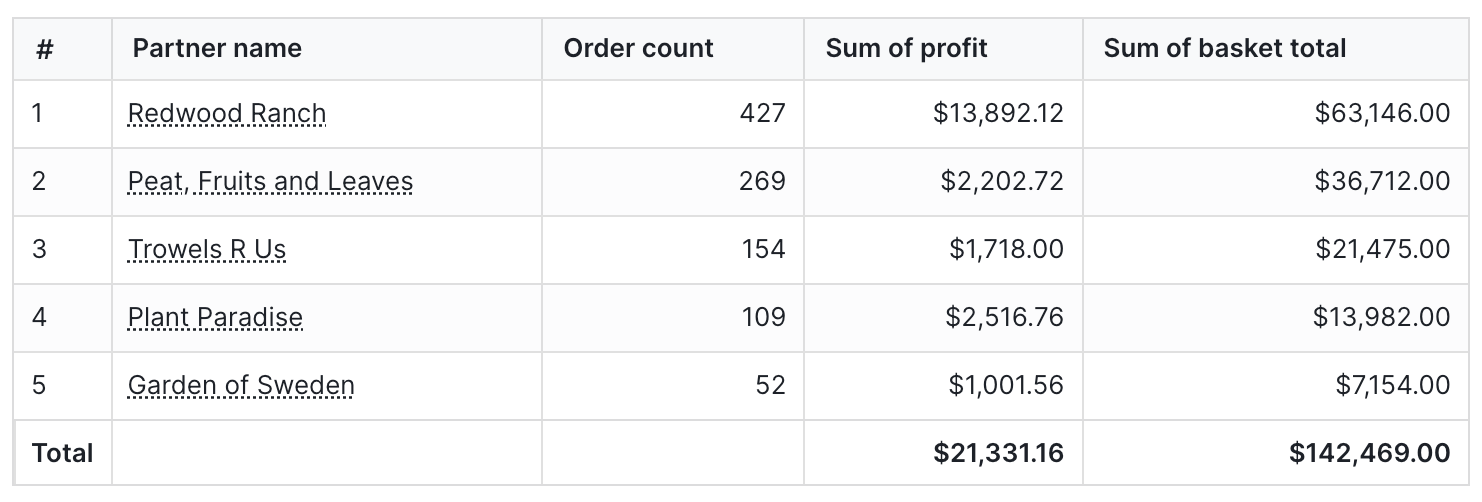 The Table option is good for looking at (surprise, surprise) tabular data, or for lists of things like user IDs or transactions.
The options for Tables include:
* Renaming the columns in your table.
* Showing and hiding the columns in your table.
* Showing and hiding the table name from the column labels.
* Showing and hiding the totals for your columns.
* Limiting the displayed rows to the first or last N (see [Limiting displayed rows](#limiting-displayed-rows)).
* Pivoting by a column.
* Transposing your table (a.k.a. pivoting your metrics)
* Locking a column from scrolling in your table.
* Resizing columns by dragging the column header edge.
* Adding conditional formatting to your cells.
By default, we attach the table name to your field name (just in case you've got any duplicate fields from joined tables). But, you can easily turn this off in your table viz with a toggle.
## Columns, rows, and metrics
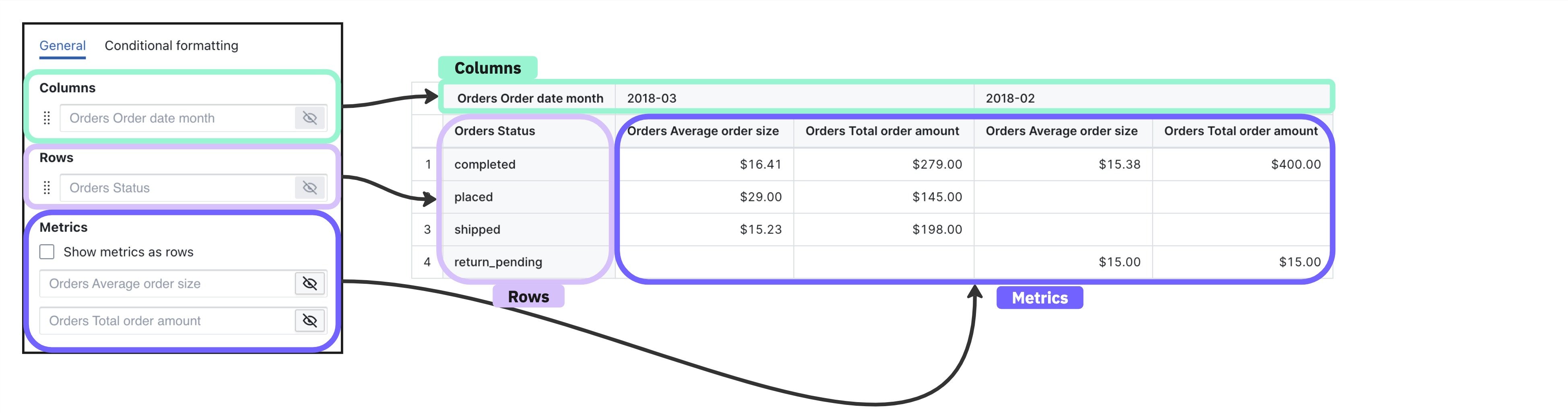
Table visualizations have three components:
* **Rows**: When a field is chosen for the row area, all of the unique values for that field are populated as values in the *rows* of your table.
* **Columns**: When a field is chosen for the column area, all of the unique values for that field are populated as values in the *columns* of your table.
* **Metrics**: If you have metrics in your table, then each metric cell shows the summarized information for a given row + column combination.
The Table option is good for looking at (surprise, surprise) tabular data, or for lists of things like user IDs or transactions.
The options for Tables include:
* Renaming the columns in your table.
* Showing and hiding the columns in your table.
* Showing and hiding the table name from the column labels.
* Showing and hiding the totals for your columns.
* Limiting the displayed rows to the first or last N (see [Limiting displayed rows](#limiting-displayed-rows)).
* Pivoting by a column.
* Transposing your table (a.k.a. pivoting your metrics)
* Locking a column from scrolling in your table.
* Resizing columns by dragging the column header edge.
* Adding conditional formatting to your cells.
By default, we attach the table name to your field name (just in case you've got any duplicate fields from joined tables). But, you can easily turn this off in your table viz with a toggle.
## Columns, rows, and metrics
Table visualizations have three components:
* **Rows**: When a field is chosen for the row area, all of the unique values for that field are populated as values in the *rows* of your table.
* **Columns**: When a field is chosen for the column area, all of the unique values for that field are populated as values in the *columns* of your table.
* **Metrics**: If you have metrics in your table, then each metric cell shows the summarized information for a given row + column combination.
 ## Adding tiny bars to table visualization
You can also enable tiny bars on each table cell, to improve visual feedback.
To configure this, go to `bar display` on the sidebar, and select the `numeric` columns. We'll calculate the min/max values , and we will display a tiny bar next to the value on the table
## Adding tiny bars to table visualization
You can also enable tiny bars on each table cell, to improve visual feedback.
To configure this, go to `bar display` on the sidebar, and select the `numeric` columns. We'll calculate the min/max values , and we will display a tiny bar next to the value on the table
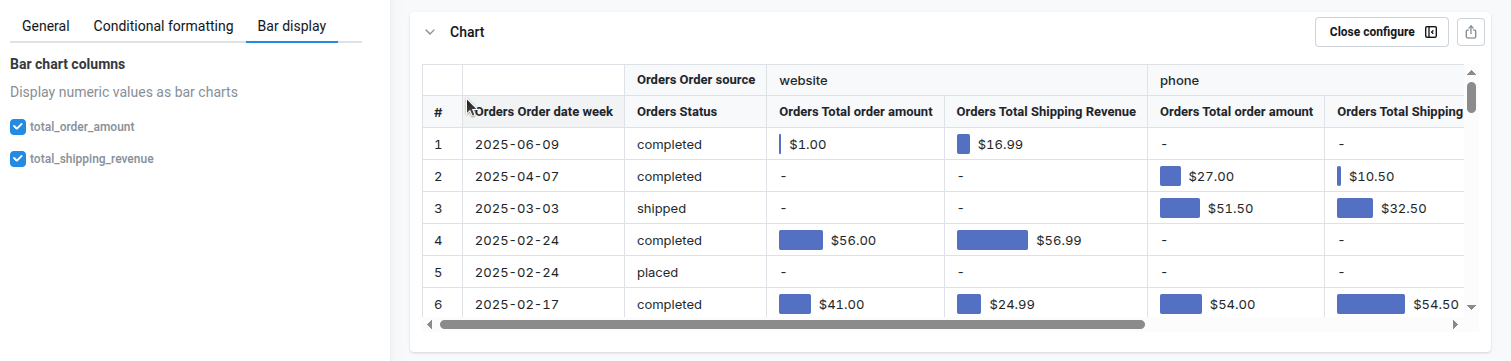 This feature also works on pivot tables
## Limiting displayed rows
You can show or hide a slice of rows from the top or bottom of your table without changing the underlying query. The control lives in the **Data** section of the table configuration panel and is only available on non-pivoted tables — for pivot tables, use a query filter or the [pivot column limit](#column-limits) instead.
The control reads as a sentence:
* **Show / Hide** — keep only the targeted rows, or remove them.
* **First / Last** — anchor to the top or bottom of the results.
* **N** — how many rows to target (default 50).
Examples:
| Setting | Effect |
| ---------------------- | ------------------------------------------------------------------- |
| Show the first 50 rows | Display only the top 50 rows |
| Hide the last 1 row | Drop the bottom row (useful when the trailing period is incomplete) |
| Show the last 10 rows | Display only the bottom 10 rows |
The row limit only affects what's drawn in the table. Your query still returns the full result set, totals are calculated against all rows, and CSV exports include every row.
## Pivot tables
Pivot tables allow you to summarize larger sets of data in table visualizations by moving row values into columns. They're also helpful to identify trends between two dimensions in your data using a table visualization.
To add a pivot in your table, move a dimension to the `column` section of your table configuration. This will change the dimension from having its values populate the rows values of your table, to having it populate the column values of your table.
This feature also works on pivot tables
## Limiting displayed rows
You can show or hide a slice of rows from the top or bottom of your table without changing the underlying query. The control lives in the **Data** section of the table configuration panel and is only available on non-pivoted tables — for pivot tables, use a query filter or the [pivot column limit](#column-limits) instead.
The control reads as a sentence:
* **Show / Hide** — keep only the targeted rows, or remove them.
* **First / Last** — anchor to the top or bottom of the results.
* **N** — how many rows to target (default 50).
Examples:
| Setting | Effect |
| ---------------------- | ------------------------------------------------------------------- |
| Show the first 50 rows | Display only the top 50 rows |
| Hide the last 1 row | Drop the bottom row (useful when the trailing period is incomplete) |
| Show the last 10 rows | Display only the bottom 10 rows |
The row limit only affects what's drawn in the table. Your query still returns the full result set, totals are calculated against all rows, and CSV exports include every row.
## Pivot tables
Pivot tables allow you to summarize larger sets of data in table visualizations by moving row values into columns. They're also helpful to identify trends between two dimensions in your data using a table visualization.
To add a pivot in your table, move a dimension to the `column` section of your table configuration. This will change the dimension from having its values populate the rows values of your table, to having it populate the column values of your table.
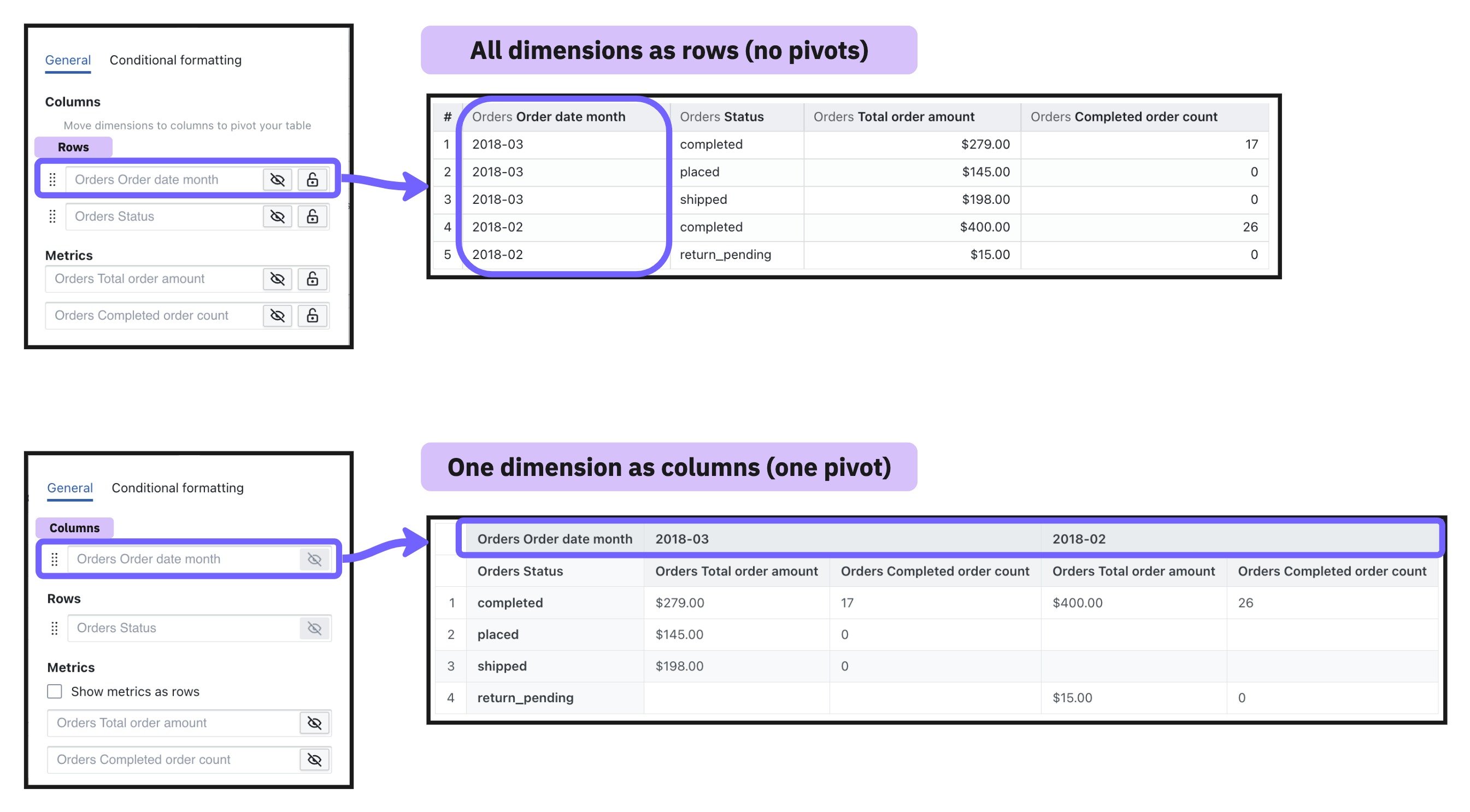 You can move up to 3 dimensions as columns.
### Sorting pivot tables
Pivot tables support clickable header sorting. Click a column header in the pivot table to open a sort menu showing the available directions (for example, `Sort A → Z` / `Sort Z → A`, or `Sort 1 → 9` / `Sort 9 → 1` for numeric columns), a `Remove sort` option once a direction is active, and — for dimension columns — a `Hide column` option.
You can move up to 3 dimensions as columns.
### Sorting pivot tables
Pivot tables support clickable header sorting. Click a column header in the pivot table to open a sort menu showing the available directions (for example, `Sort A → Z` / `Sort Z → A`, or `Sort 1 → 9` / `Sort 9 → 1` for numeric columns), a `Remove sort` option once a direction is active, and — for dimension columns — a `Hide column` option.
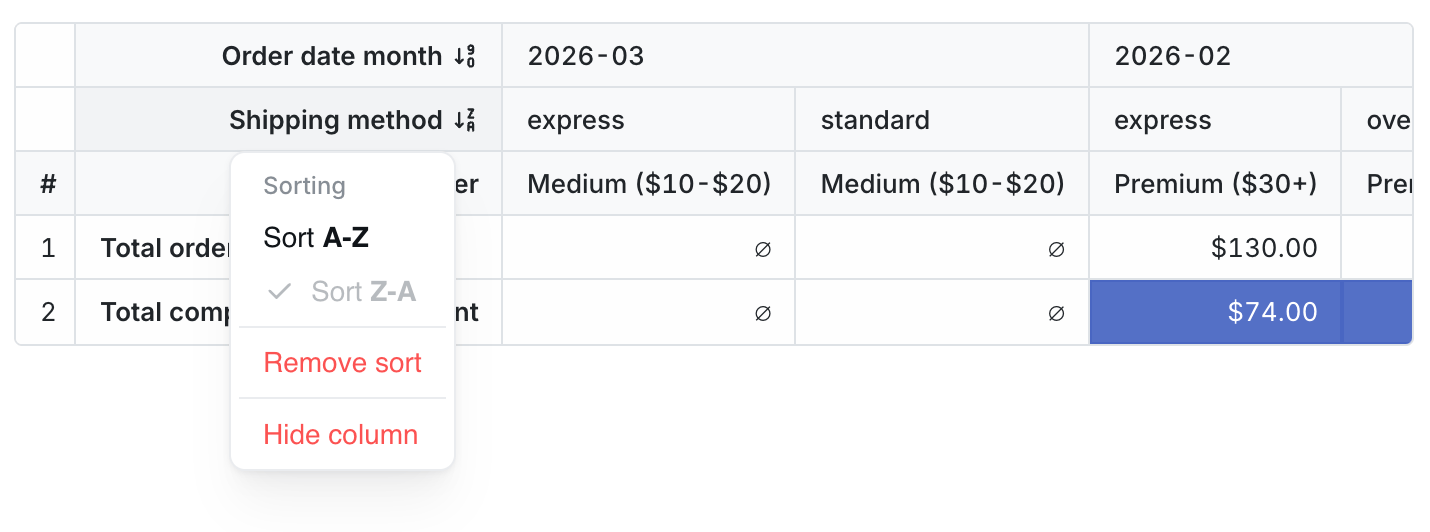 The column you click determines what gets sorted:
* **Click a row-dimension header** (the index columns on the left) to sort rows alphabetically or numerically by that dimension.
* **Click a pivoted-dimension header** (the dimension that was moved to `column`) to sort the pivot column groups by that dimension's values — for example, ordering pivot months chronologically or reverse-chronologically.
* **Click a metric value-column header** (a cell underneath a specific pivot group, like `revenue` under `2025-01`) to sort the rows by that metric **within that specific pivot group**. Sorting by one metric column doesn't reorder cells in the other pivot groups — it only changes the row order.
Sorts applied through headers are saved with the chart configuration.
Header-click sorting is only available in edit mode and only on pivot tables. Flat (non-pivoted) tables use the sort pill above the chart — see the [Explore sort menu](/get-started/exploring-data/using-explores#sort-results). Saved charts and dashboard tiles render with the sort that was saved.
When you sort by a row dimension, any existing sort on a different row dimension at the same grouping level is replaced. When you sort by a metric inside a pivot group, only sorts targeting that same pivot group are replaced — sorts on row dimensions or other pivot groups are preserved, so you can combine them.
#### Hiding pivot dimension columns from the header menu
When sorting from a row-dimension or pivoted-dimension header, the menu also includes a `Hide column` option. Hiding a dimension from this menu is equivalent to toggling its visibility off in the chart configuration panel — see [Hidden dimensions and sorting](#hidden-dimensions-and-sorting) below for how hidden dimensions still drive sort order and row grouping. The option is disabled for dimensions that are currently being used as a subtotal grouping level.
### Hidden dimensions and sorting
You can hide a dimension column from a pivot table while still using it to control sort order. Toggle the column's visibility off in the chart configuration panel — the dimension stops rendering as a row-index or pivot-column-header cell, and it's excluded from CSV and XLSX exports, but it continues to drive the SQL sort order and row grouping behind the scenes.
This is useful when you want to sort rows by a value you don't want to display. For example, you can sort partners by `partner_id` while only showing `partner_name` in the table.
Rows are still grouped using the full set of dimensions, including hidden ones. Rows with the same visible values but different hidden-dimension values are kept as separate rows rather than collapsed together.
### Column limits
Pivot tables have a default limit of 200 columns to ensure good performance. Large pivot tables with many columns can significantly slow down query execution and rendering times, so this limit helps keep your dashboards responsive.
If you have a Lightdash Pro or Enterprise account, this limit can be increased at your request. If you are self-hosting, you can set the pivot column limit by updating the [`LIGHTDASH_PIVOT_TABLE_MAX_COLUMN_LIMIT`](/self-host/customize-deployment/environment-variables) environment variable.
The column limit works differently depending on whether you have metrics as rows or metrics as columns:
#### When metrics are columns (default)
When metrics are displayed as columns (the default behavior), each pivoted dimension value creates a column for **every metric**. This means the total number of columns equals the number of unique dimension values multiplied by the number of metrics.
For example, if you pivot by `order_date_month` (with 36 months of data) and have 3 metrics:
* Total columns: 36 months × 3 metrics = 108 columns which is within the column limit of 200
The limit always applies to complete dimension values — a dimension value is either fully shown (with all of its metrics) or not shown at all. The number of dimension values displayed is determined by dividing the column limit by the number of metrics and rounding down.
With a column limit of 200 and 3 metrics:
* Maximum dimension values: `floor(200 / 3)` = 66 months
Here's what a pivoted table looks like with `order_date_month` pivoted to columns and 3 metrics:
The column you click determines what gets sorted:
* **Click a row-dimension header** (the index columns on the left) to sort rows alphabetically or numerically by that dimension.
* **Click a pivoted-dimension header** (the dimension that was moved to `column`) to sort the pivot column groups by that dimension's values — for example, ordering pivot months chronologically or reverse-chronologically.
* **Click a metric value-column header** (a cell underneath a specific pivot group, like `revenue` under `2025-01`) to sort the rows by that metric **within that specific pivot group**. Sorting by one metric column doesn't reorder cells in the other pivot groups — it only changes the row order.
Sorts applied through headers are saved with the chart configuration.
Header-click sorting is only available in edit mode and only on pivot tables. Flat (non-pivoted) tables use the sort pill above the chart — see the [Explore sort menu](/get-started/exploring-data/using-explores#sort-results). Saved charts and dashboard tiles render with the sort that was saved.
When you sort by a row dimension, any existing sort on a different row dimension at the same grouping level is replaced. When you sort by a metric inside a pivot group, only sorts targeting that same pivot group are replaced — sorts on row dimensions or other pivot groups are preserved, so you can combine them.
#### Hiding pivot dimension columns from the header menu
When sorting from a row-dimension or pivoted-dimension header, the menu also includes a `Hide column` option. Hiding a dimension from this menu is equivalent to toggling its visibility off in the chart configuration panel — see [Hidden dimensions and sorting](#hidden-dimensions-and-sorting) below for how hidden dimensions still drive sort order and row grouping. The option is disabled for dimensions that are currently being used as a subtotal grouping level.
### Hidden dimensions and sorting
You can hide a dimension column from a pivot table while still using it to control sort order. Toggle the column's visibility off in the chart configuration panel — the dimension stops rendering as a row-index or pivot-column-header cell, and it's excluded from CSV and XLSX exports, but it continues to drive the SQL sort order and row grouping behind the scenes.
This is useful when you want to sort rows by a value you don't want to display. For example, you can sort partners by `partner_id` while only showing `partner_name` in the table.
Rows are still grouped using the full set of dimensions, including hidden ones. Rows with the same visible values but different hidden-dimension values are kept as separate rows rather than collapsed together.
### Column limits
Pivot tables have a default limit of 200 columns to ensure good performance. Large pivot tables with many columns can significantly slow down query execution and rendering times, so this limit helps keep your dashboards responsive.
If you have a Lightdash Pro or Enterprise account, this limit can be increased at your request. If you are self-hosting, you can set the pivot column limit by updating the [`LIGHTDASH_PIVOT_TABLE_MAX_COLUMN_LIMIT`](/self-host/customize-deployment/environment-variables) environment variable.
The column limit works differently depending on whether you have metrics as rows or metrics as columns:
#### When metrics are columns (default)
When metrics are displayed as columns (the default behavior), each pivoted dimension value creates a column for **every metric**. This means the total number of columns equals the number of unique dimension values multiplied by the number of metrics.
For example, if you pivot by `order_date_month` (with 36 months of data) and have 3 metrics:
* Total columns: 36 months × 3 metrics = 108 columns which is within the column limit of 200
The limit always applies to complete dimension values — a dimension value is either fully shown (with all of its metrics) or not shown at all. The number of dimension values displayed is determined by dividing the column limit by the number of metrics and rounding down.
With a column limit of 200 and 3 metrics:
* Maximum dimension values: `floor(200 / 3)` = 66 months
Here's what a pivoted table looks like with `order_date_month` pivoted to columns and 3 metrics:
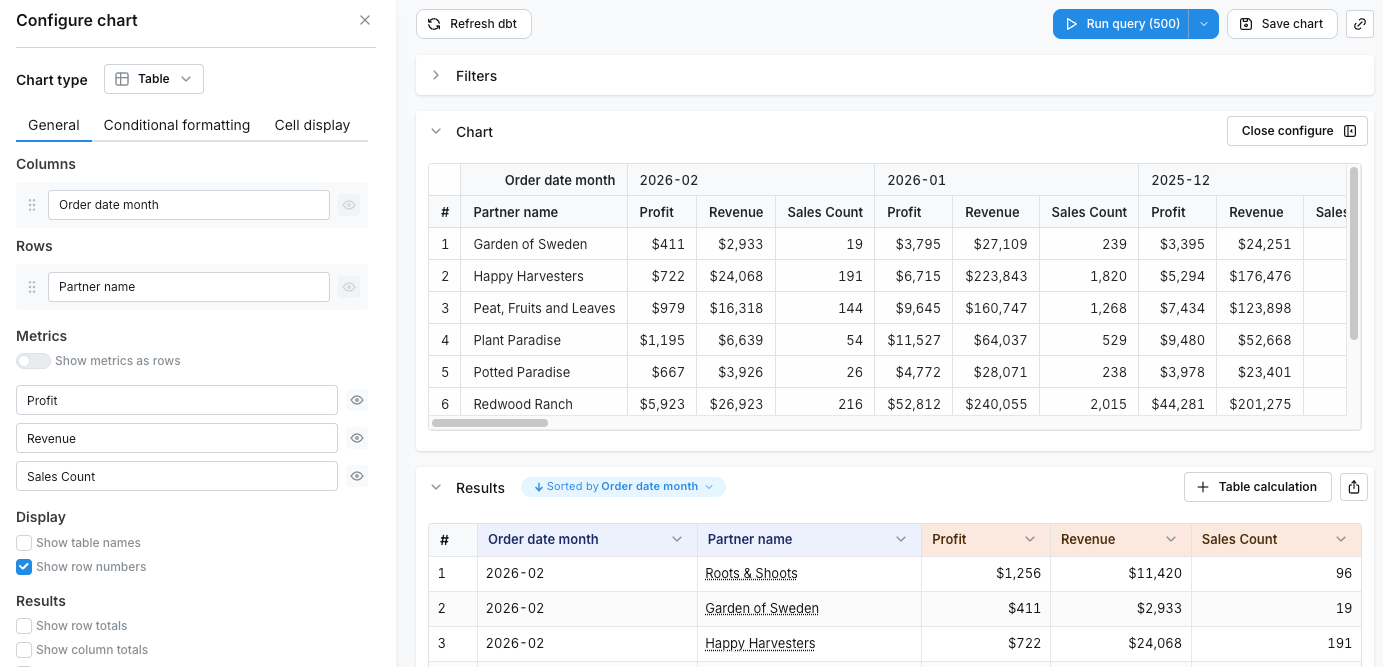
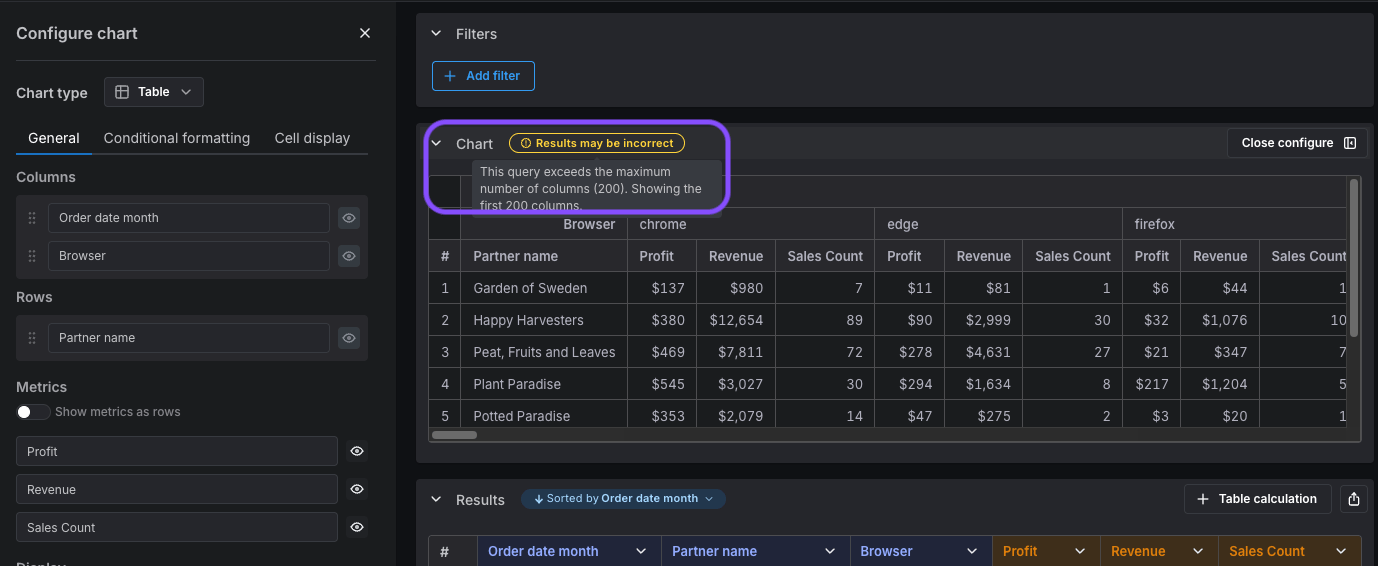
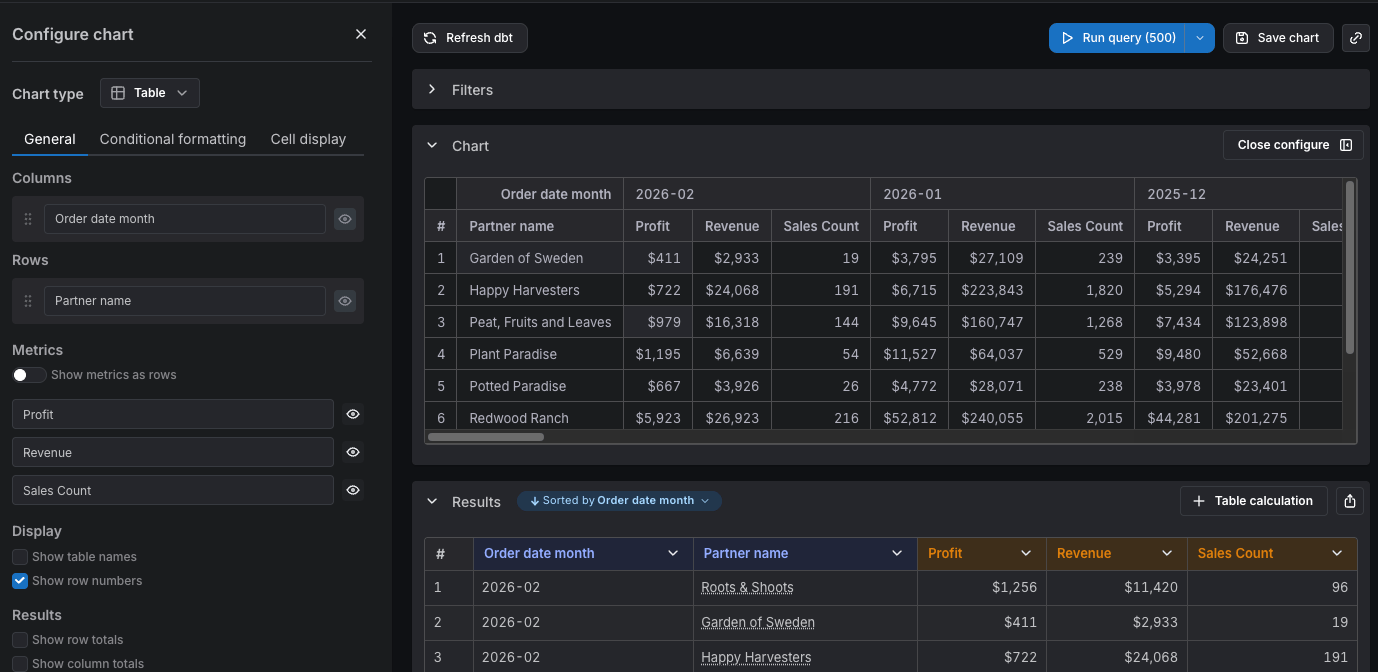 If too many columns are generated as a result of your pivot configuration, you will see a warning that your results may be incomplete. This often happens when you pivot by multiple dimensions.
For example, if you pivot by both `order_date_month` and `browser` (with 6 distinct values) and have 3 metrics, the maximum number of months displayed is:
* Maximum dimension values: `floor(200 / (6*3))` = 11 months
The warning looks like this:
If too many columns are generated as a result of your pivot configuration, you will see a warning that your results may be incomplete. This often happens when you pivot by multiple dimensions.
For example, if you pivot by both `order_date_month` and `browser` (with 6 distinct values) and have 3 metrics, the maximum number of months displayed is:
* Maximum dimension values: `floor(200 / (6*3))` = 11 months
The warning looks like this:
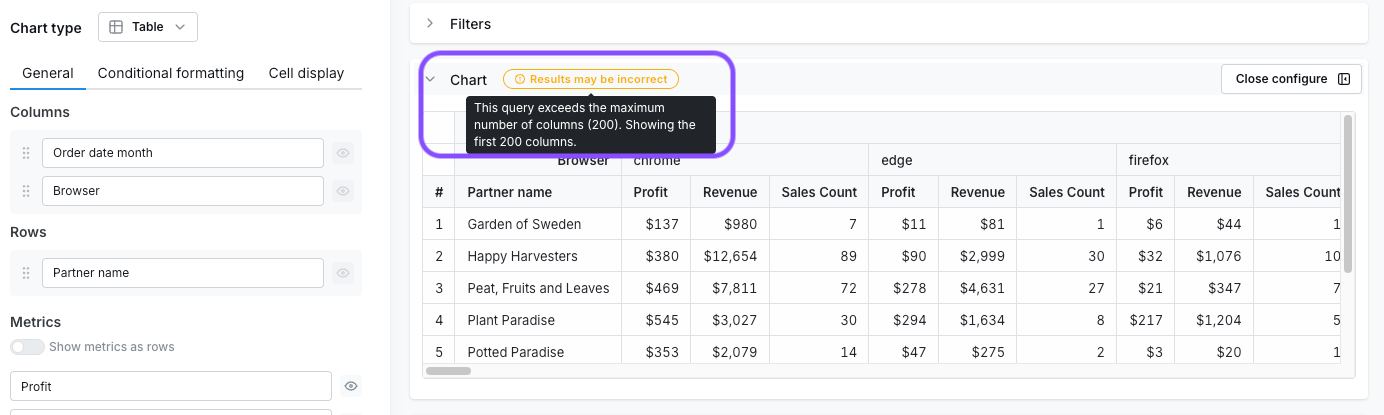
 To reduce the number of pivot columns, you can:
* filter your data, e.g., filter your months to only show data from the last year
* reduce the number of dimensions you are pivoting on, e.g., decide whether splitting your data by both `order_date_month` and `browser` is necessary
* reduce the granularity of your pivot dimensions, e.g., pivot by `order_date_year` instead of `order_date_month`
* show metrics as rows instead of columns (see below)
#### When metrics are rows
When you enable **Show metrics as rows**, each pivoted dimension value creates only **one column**, regardless of how many metrics you have. The metrics are displayed as separate rows instead.
For example, if you have `partner_name` as a row dimension (with 5 partners), pivot by `order_date_month` (with 12 months of data), and have 3 metrics:
* Total columns: 12 (one per month)
* Each row is repeated once per metric — so you'll see 5 × 3 = 15 rows
Here's what the same data looks like with metrics as rows, where the row dimension is `partner_name`:
To reduce the number of pivot columns, you can:
* filter your data, e.g., filter your months to only show data from the last year
* reduce the number of dimensions you are pivoting on, e.g., decide whether splitting your data by both `order_date_month` and `browser` is necessary
* reduce the granularity of your pivot dimensions, e.g., pivot by `order_date_year` instead of `order_date_month`
* show metrics as rows instead of columns (see below)
#### When metrics are rows
When you enable **Show metrics as rows**, each pivoted dimension value creates only **one column**, regardless of how many metrics you have. The metrics are displayed as separate rows instead.
For example, if you have `partner_name` as a row dimension (with 5 partners), pivot by `order_date_month` (with 12 months of data), and have 3 metrics:
* Total columns: 12 (one per month)
* Each row is repeated once per metric — so you'll see 5 × 3 = 15 rows
Here's what the same data looks like with metrics as rows, where the row dimension is `partner_name`:
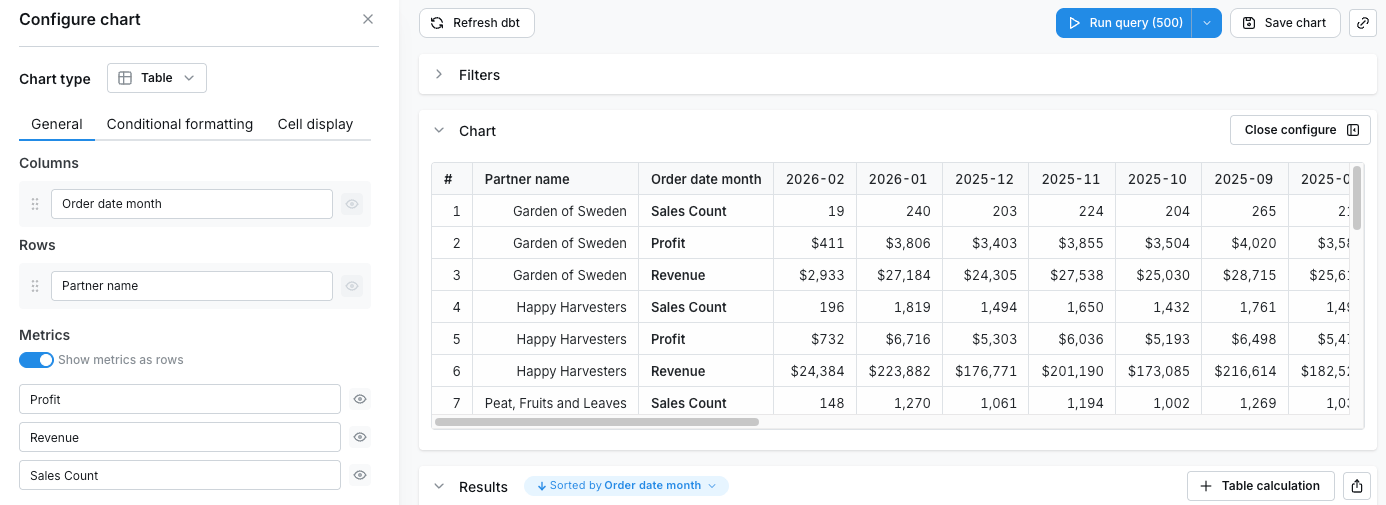
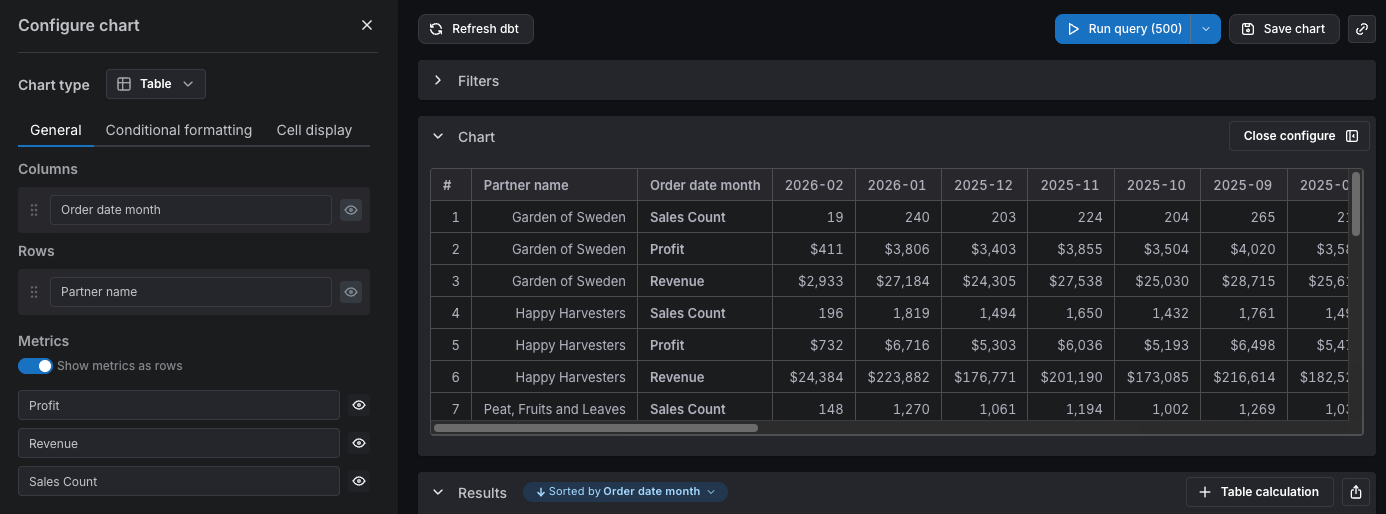 With 12 months, this creates only 12 columns, compared to 36 columns when metrics are columns.
This means you can display significantly more dimension values when using metrics as rows, which is useful when you have many metrics to compare across time periods or other dimensions.
## Totals
You can add column totals or row totals (in pivot tables) to your tables by selecting `Show column totals` or `Show row totals` in the chart configuration panel. The column totals in your results and table visualizations are calculated using the underlying data from your table, not only the values that are visible in the table.
In pivot tables, both column totals and row totals are computed by running extra aggregation queries against your warehouse, so each total reflects the true value for that column or row rather than a sum of the cells shown. This means totals are accurate for `count`, `sum`, `count_distinct`, `average`, `min`, `max`, and ratio metrics in pivot tables, in both the metrics-as-columns and metrics-as-rows layouts. If the warehouse cannot return a value for a given total (for example, when a metric is not defined for that row), the cell is left blank rather than showing an incorrect sum.
### Totals for table calculations
Lightdash computes grand, column, row, and subtotal values for a table calculation by re-applying it to the aggregated totals row (e.g. `100 * sum(profit) / sum(revenue)`) rather than summing the cells shown in the table.
A total is only produced when **all** of these are true:
* The calculation references only aggregated metrics — no dimensions, custom dimensions, period-over-period metrics, or other table calculations.
* It contains no window logic: no SQL `OVER (...)` clause, no built-in row/pivot/total helper functions, and no formula aggregate or window functions.
* The calculation is a SQL or formula table calculation — template table calculations are always excluded.
If any of these conditions fails, the total cell stays blank rather than showing a misleading value. Common examples that stay blank: running totals, `LAG` / `LEAD` / `ROW_NUMBER`, percent-of-total helpers, and any calc that references a dimension or another table calculation.
**Filters disable totals entirely**
When the query has metric filters or table calculation filters, the totals row is omitted for the whole table — table calculation filters are applied after the calculations run, so the resulting totals would be inconsistent with the visible rows.
### Incorrect totals
**Why are my totals lower?**
When using the `count_distinct` metric type, you can sometimes get totals that are smaller than if you sum up the values seen in the table.
For example, if you count the distinct number of devices that viewed pages on our website each month, it would look something like this:
With 12 months, this creates only 12 columns, compared to 36 columns when metrics are columns.
This means you can display significantly more dimension values when using metrics as rows, which is useful when you have many metrics to compare across time periods or other dimensions.
## Totals
You can add column totals or row totals (in pivot tables) to your tables by selecting `Show column totals` or `Show row totals` in the chart configuration panel. The column totals in your results and table visualizations are calculated using the underlying data from your table, not only the values that are visible in the table.
In pivot tables, both column totals and row totals are computed by running extra aggregation queries against your warehouse, so each total reflects the true value for that column or row rather than a sum of the cells shown. This means totals are accurate for `count`, `sum`, `count_distinct`, `average`, `min`, `max`, and ratio metrics in pivot tables, in both the metrics-as-columns and metrics-as-rows layouts. If the warehouse cannot return a value for a given total (for example, when a metric is not defined for that row), the cell is left blank rather than showing an incorrect sum.
### Totals for table calculations
Lightdash computes grand, column, row, and subtotal values for a table calculation by re-applying it to the aggregated totals row (e.g. `100 * sum(profit) / sum(revenue)`) rather than summing the cells shown in the table.
A total is only produced when **all** of these are true:
* The calculation references only aggregated metrics — no dimensions, custom dimensions, period-over-period metrics, or other table calculations.
* It contains no window logic: no SQL `OVER (...)` clause, no built-in row/pivot/total helper functions, and no formula aggregate or window functions.
* The calculation is a SQL or formula table calculation — template table calculations are always excluded.
If any of these conditions fails, the total cell stays blank rather than showing a misleading value. Common examples that stay blank: running totals, `LAG` / `LEAD` / `ROW_NUMBER`, percent-of-total helpers, and any calc that references a dimension or another table calculation.
**Filters disable totals entirely**
When the query has metric filters or table calculation filters, the totals row is omitted for the whole table — table calculation filters are applied after the calculations run, so the resulting totals would be inconsistent with the visible rows.
### Incorrect totals
**Why are my totals lower?**
When using the `count_distinct` metric type, you can sometimes get totals that are smaller than if you sum up the values seen in the table.
For example, if you count the distinct number of devices that viewed pages on our website each month, it would look something like this:
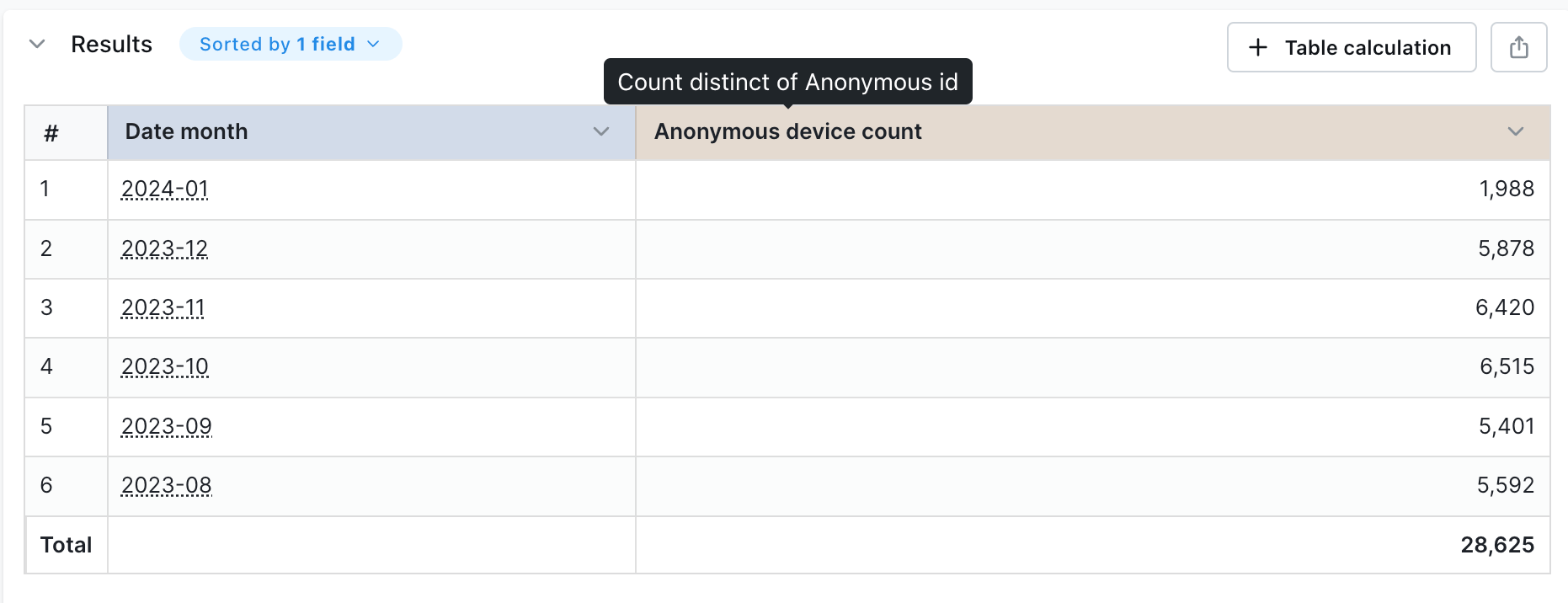 If you manually add each row in the `Anonymous device count` column, the value you get is much higher than the total shown in the table. This is because the same device can view pages on our website across many months. So, when you add up the values in the table, you'll be counting some devices more than once.
Lightdash uses a SQL query to calculate the distinct number of devices across all of the months so we avoid double-counting devices.
**Why are my totals higher?**
There are two reasons why this could be happening:
1. You've set a row limit in your query that's truncating the results. If the number of possible results from your query is larger than the row limit you've set, Lightdash will calculate the totals using all of the results (including the rows that have been removed from your table because of the limit).
2. You're using metric or table calculation filters. When you use metric or table calculation filters, the totals are calculated before the filters are applied.
**How do I calculate totals based on what's shown in my table?**
If you want to calculate totals based on just the values shown in your table, you can create a new column using a table calculation to do this.
Here's the table calculation you'll need to use to do this:
```sql theme={null}
SUM(${my_table_name.my_metric_name}) OVER()
```
This calculation isn't a "true" total when you're using metrics types that are `count_distinct`!
## Subtotals
You can add subtotals to your tables by selecting `Show subtotals` in the chart configuration panel.
If you manually add each row in the `Anonymous device count` column, the value you get is much higher than the total shown in the table. This is because the same device can view pages on our website across many months. So, when you add up the values in the table, you'll be counting some devices more than once.
Lightdash uses a SQL query to calculate the distinct number of devices across all of the months so we avoid double-counting devices.
**Why are my totals higher?**
There are two reasons why this could be happening:
1. You've set a row limit in your query that's truncating the results. If the number of possible results from your query is larger than the row limit you've set, Lightdash will calculate the totals using all of the results (including the rows that have been removed from your table because of the limit).
2. You're using metric or table calculation filters. When you use metric or table calculation filters, the totals are calculated before the filters are applied.
**How do I calculate totals based on what's shown in my table?**
If you want to calculate totals based on just the values shown in your table, you can create a new column using a table calculation to do this.
Here's the table calculation you'll need to use to do this:
```sql theme={null}
SUM(${my_table_name.my_metric_name}) OVER()
```
This calculation isn't a "true" total when you're using metrics types that are `count_distinct`!
## Subtotals
You can add subtotals to your tables by selecting `Show subtotals` in the chart configuration panel.
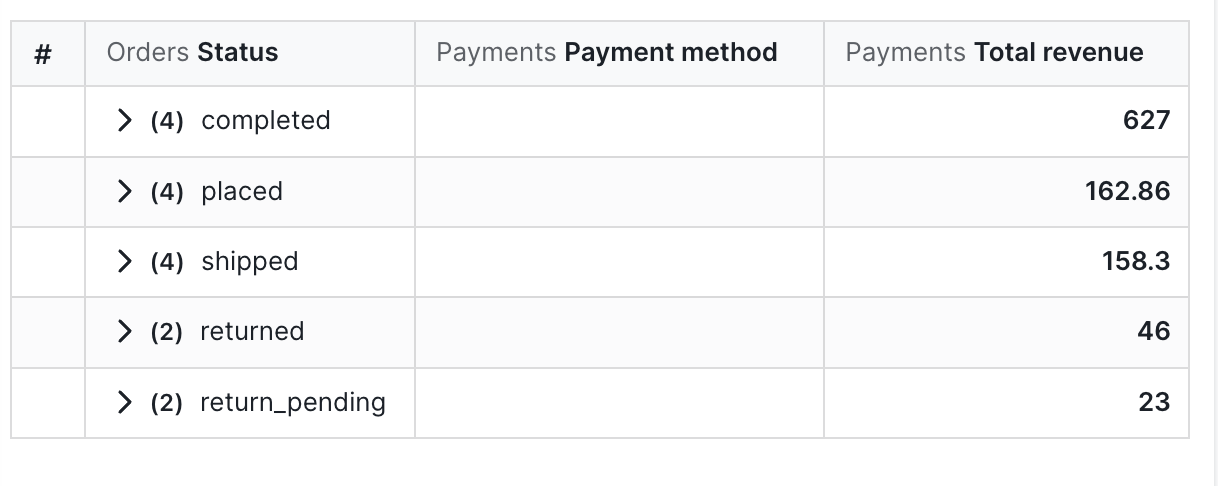 To use subtotals, you need to have at least 2 or more dimensions in your table visualization.
### Expand subtotals by default
When `Show subtotals` is enabled, you can also enable `Expand subtotals by default` to control how subtotal groups render when the chart first loads:
* **Off** (default): subtotal groups load collapsed. Viewers click each group to expand it and see the underlying rows.
* **On**: subtotal groups load expanded, showing every row beneath each subtotal.
This setting is saved with the chart, so anyone viewing the saved chart or dashboard tile sees the state you chose. Viewers can still expand or collapse individual groups while exploring.
The option is unavailable when subtotals are off or when `Show metrics as rows` is enabled on a pivot table.
## Group repeated row values
When a table has two or more dimensions, consecutive rows often share the same value in the outer dimension columns. Enable `Group repeated row values` in the chart configuration panel to visually merge those repeated cells into a single cell that spans the run of rows, making the dimension hierarchy easier to scan.
To use subtotals, you need to have at least 2 or more dimensions in your table visualization.
### Expand subtotals by default
When `Show subtotals` is enabled, you can also enable `Expand subtotals by default` to control how subtotal groups render when the chart first loads:
* **Off** (default): subtotal groups load collapsed. Viewers click each group to expand it and see the underlying rows.
* **On**: subtotal groups load expanded, showing every row beneath each subtotal.
This setting is saved with the chart, so anyone viewing the saved chart or dashboard tile sees the state you chose. Viewers can still expand or collapse individual groups while exploring.
The option is unavailable when subtotals are off or when `Show metrics as rows` is enabled on a pivot table.
## Group repeated row values
When a table has two or more dimensions, consecutive rows often share the same value in the outer dimension columns. Enable `Group repeated row values` in the chart configuration panel to visually merge those repeated cells into a single cell that spans the run of rows, making the dimension hierarchy easier to scan.
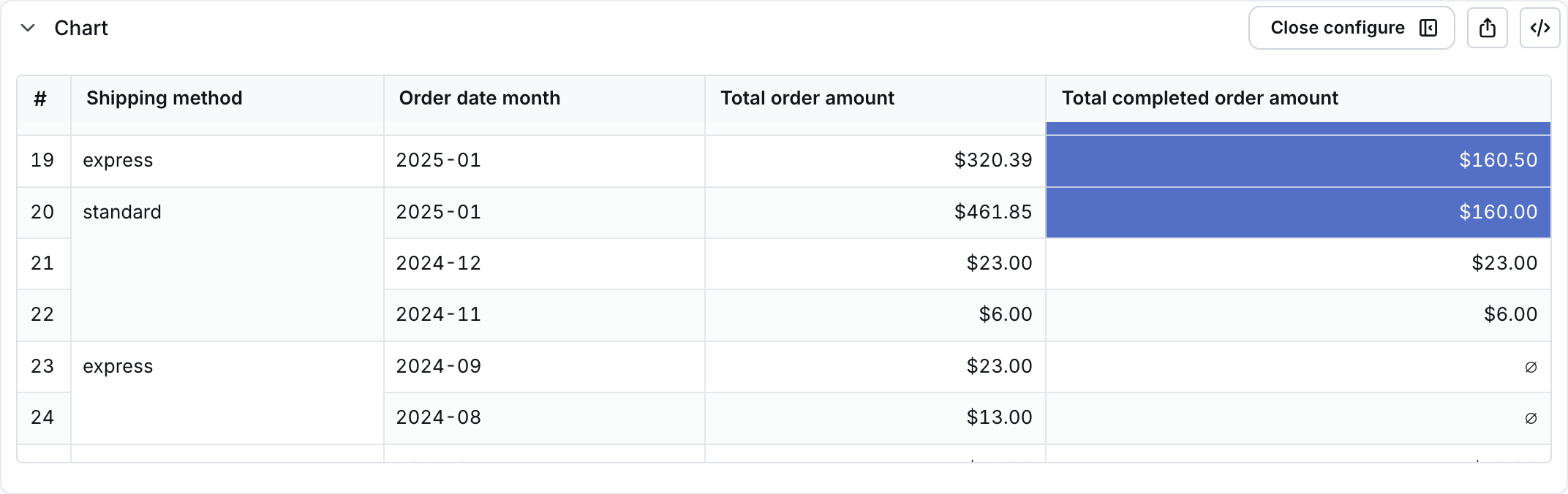 Grouping is purely visual — it doesn't change the underlying query, sort order, totals, or CSV/XLSX exports. Cells are merged only across consecutive rows that share the same prefix of outer dimension values, so the existing row order is preserved.
The option works on both flat (non-pivoted) tables and pivot tables:
* **Flat tables**: repeated values in all dimension columns except the last (leaf) dimension are merged. The leaf dimension stays per-row, since grouping it would produce one group per row.
* **Pivot tables**: repeated values in the row-index dimensions (the dimensions on the left, not the pivoted columns) are merged, again excluding the leaf dimension.
Requirements and interactions:
* You need at least two dimensions in the table for the option to be available.
* Row grouping is always on when `Show subtotals` is enabled — the checkbox is locked in that state because subtotals rely on the same grouping.
* The option is unavailable when `Show metrics as rows` is enabled on a pivot table.
## Freeze columns
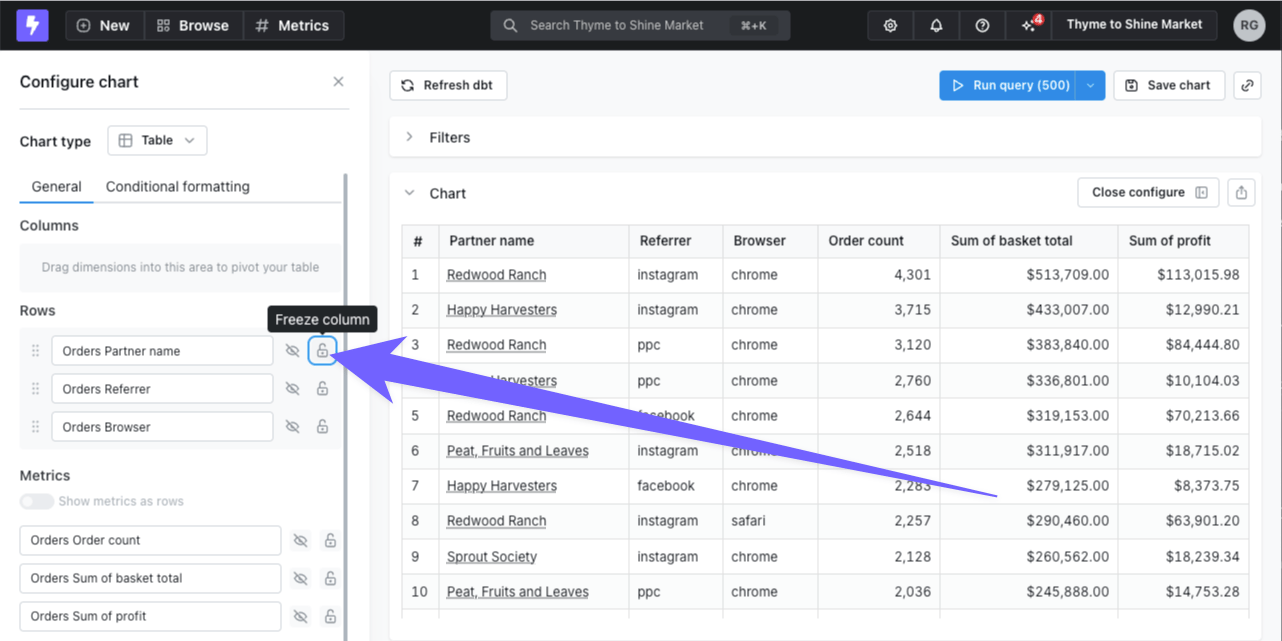
If you have a wide table, you may want some columns to be locked to the left while you're scrolling. Click on the lock icon beside the column(s) you want to keep pinned to the left of your table visualization to lock them in place.
Grouping is purely visual — it doesn't change the underlying query, sort order, totals, or CSV/XLSX exports. Cells are merged only across consecutive rows that share the same prefix of outer dimension values, so the existing row order is preserved.
The option works on both flat (non-pivoted) tables and pivot tables:
* **Flat tables**: repeated values in all dimension columns except the last (leaf) dimension are merged. The leaf dimension stays per-row, since grouping it would produce one group per row.
* **Pivot tables**: repeated values in the row-index dimensions (the dimensions on the left, not the pivoted columns) are merged, again excluding the leaf dimension.
Requirements and interactions:
* You need at least two dimensions in the table for the option to be available.
* Row grouping is always on when `Show subtotals` is enabled — the checkbox is locked in that state because subtotals rely on the same grouping.
* The option is unavailable when `Show metrics as rows` is enabled on a pivot table.
## Freeze columns
If you have a wide table, you may want some columns to be locked to the left while you're scrolling. Click on the lock icon beside the column(s) you want to keep pinned to the left of your table visualization to lock them in place.
 ## Resize columns
You can drag to resize columns in both pivot and non-pivot tables. This feature is available in Explore view when in edit mode.
To resize a column:
1. Hover over the right edge of a column header to reveal the resize handle
2. Drag the handle left or right to adjust the column width
3. Release to set the new width
Column widths are saved with the chart configuration, so your changes are visible to everyone viewing the chart. Text that overflows a resized column will display with an ellipsis.
## Resize columns
You can drag to resize columns in both pivot and non-pivot tables. This feature is available in Explore view when in edit mode.
To resize a column:
1. Hover over the right edge of a column header to reveal the resize handle
2. Drag the handle left or right to adjust the column width
3. Release to set the new width
Column widths are saved with the chart configuration, so your changes are visible to everyone viewing the chart. Text that overflows a resized column will display with an ellipsis.
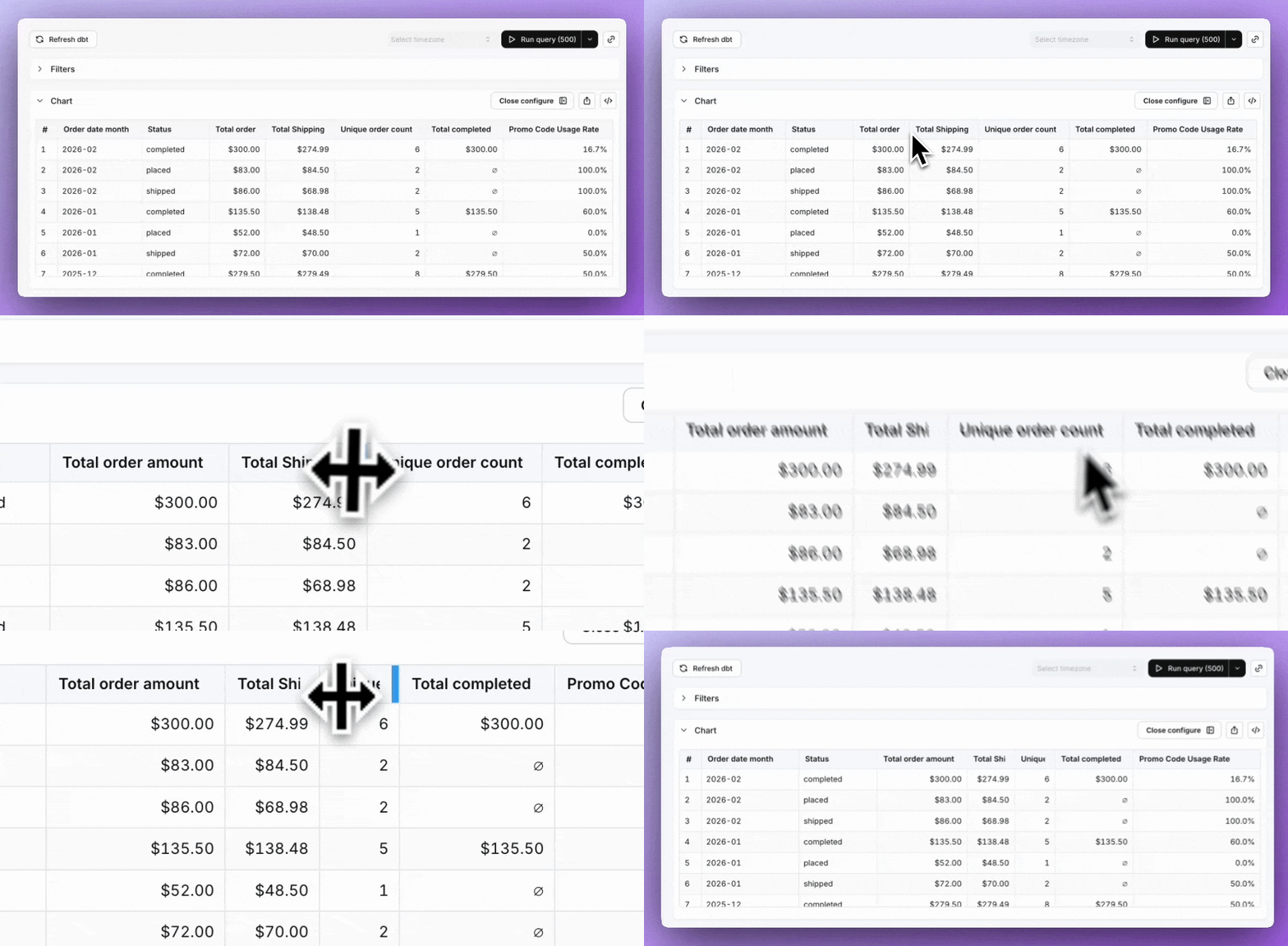 You can see the current column width in the column configuration panel, which also includes a reset button to restore the default width. Columns have a minimum width of 50px to prevent them from disappearing.
## Conditional formatting
Sometimes it's helpful to highlight certain values in your tables when they meet a specific condition. You can set up conditional formatting rules by going to the **Configure** tab, then **Conditional Formatting**.
You can see the current column width in the column configuration panel, which also includes a reset button to restore the default width. Columns have a minimum width of 50px to prevent them from disappearing.
## Conditional formatting
Sometimes it's helpful to highlight certain values in your tables when they meet a specific condition. You can set up conditional formatting rules by going to the **Configure** tab, then **Conditional Formatting**.
 ### Highlighting cells
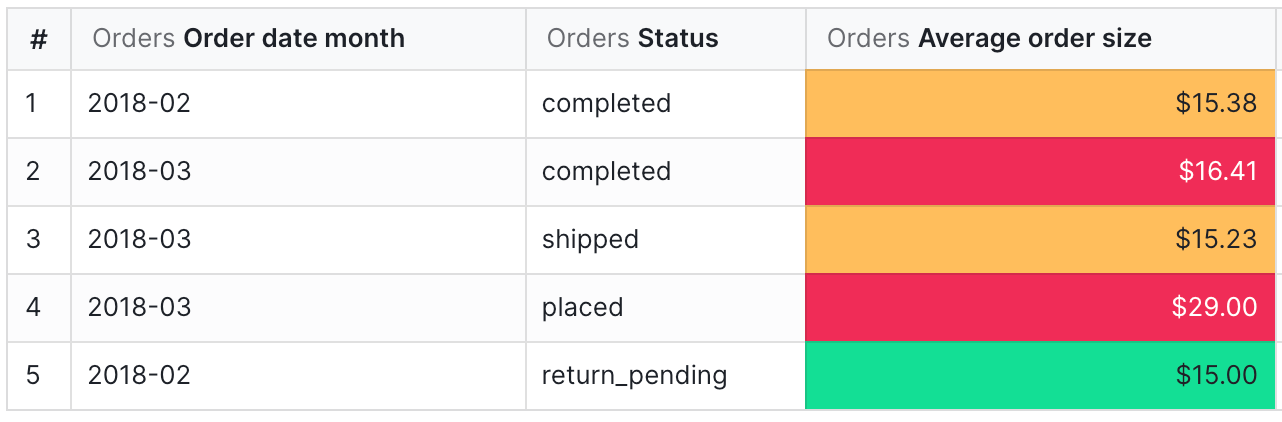
When you add a new rule, you'll first need to pick which column should be highlighted and the type of rule you'd like to apply (**Single** or **Range**). There are three ways to compare data for each role:
1. **Values** compares the chosen field to manual input values.
* For example, color the `Profit` column red when a row is less than \$10,000
2. **Field** compares the chosen field to another field in your results.
* For example, color the `Revenue` column green when it is greater than the `Target revenue` column.
3. **Field values** compares another field in your results to manual input values, then formats your chosen field.
* For example, color the `Partner name` column orange when the `Total orders` column is greater than 1,000.
You can set as many rules on a table as you want. If two or more rules disagree with each other, the rule that's on the bottom of your list of rules will win.
### Color ranges
To use color ranges for your rules, select **Range** under **Conditional Formatting**. You can choose specific minimum and maximum values, or you can automatically set them based on the values in your results.
### Highlighting cells
When you add a new rule, you'll first need to pick which column should be highlighted and the type of rule you'd like to apply (**Single** or **Range**). There are three ways to compare data for each role:
1. **Values** compares the chosen field to manual input values.
* For example, color the `Profit` column red when a row is less than \$10,000
2. **Field** compares the chosen field to another field in your results.
* For example, color the `Revenue` column green when it is greater than the `Target revenue` column.
3. **Field values** compares another field in your results to manual input values, then formats your chosen field.
* For example, color the `Partner name` column orange when the `Total orders` column is greater than 1,000.
You can set as many rules on a table as you want. If two or more rules disagree with each other, the rule that's on the bottom of your list of rules will win.
### Color ranges
To use color ranges for your rules, select **Range** under **Conditional Formatting**. You can choose specific minimum and maximum values, or you can automatically set them based on the values in your results.
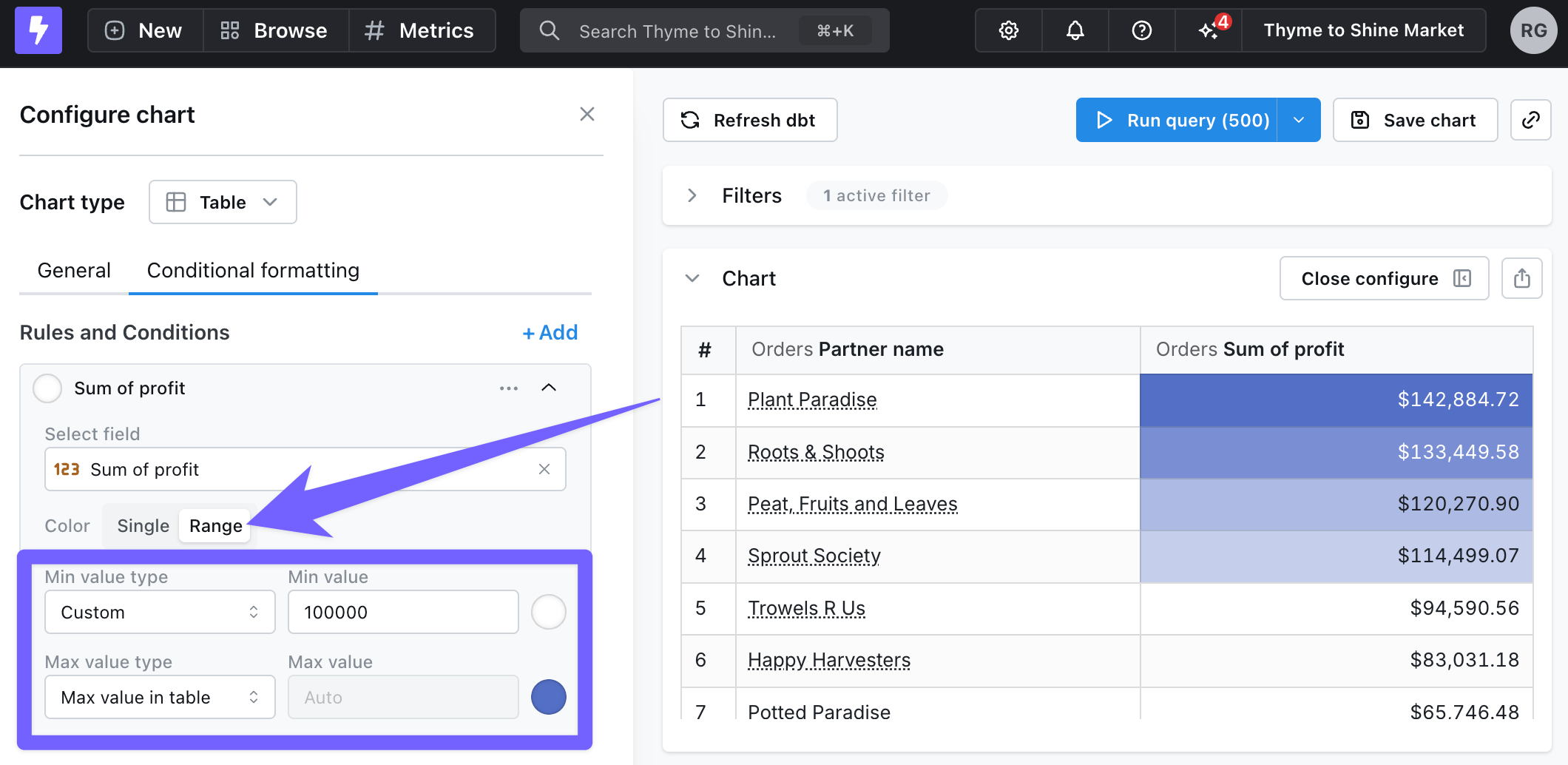 The color range will use a set of 5 colors mapped across the min and max colors selected in your rule.